PA Child Abuse History Clearance (School of Education and Blindness & Low Vision Studies Field Placement – Self-pay)
This instruction guide is intended to be used only by Drexel University students completing field placement experiences with the School of Education or the Blindness & Low Vision Studies Department. Human Resources would like to highlight that this is a state form and may not be inclusive of all genders, races, or ethnicities. If you need assistance during this process, please email SOEclearances@drexel.edu (SoE students) or BLVSclearances@drexel.edu (Blindness & Low Vision Studies students). For questions regarding your account log in, set up, or technical assistance, please contact the Pennsylvania Child Welfare Support Center at 1.877.343.0494.
- Go to compass.state.pa.us/cwis/public/home.
- Click on “Create Individual Account.”
- Click “Next.”
- Create a user account by filling in this page. The Keystone ID is a username that you make up. Click “Finish.”
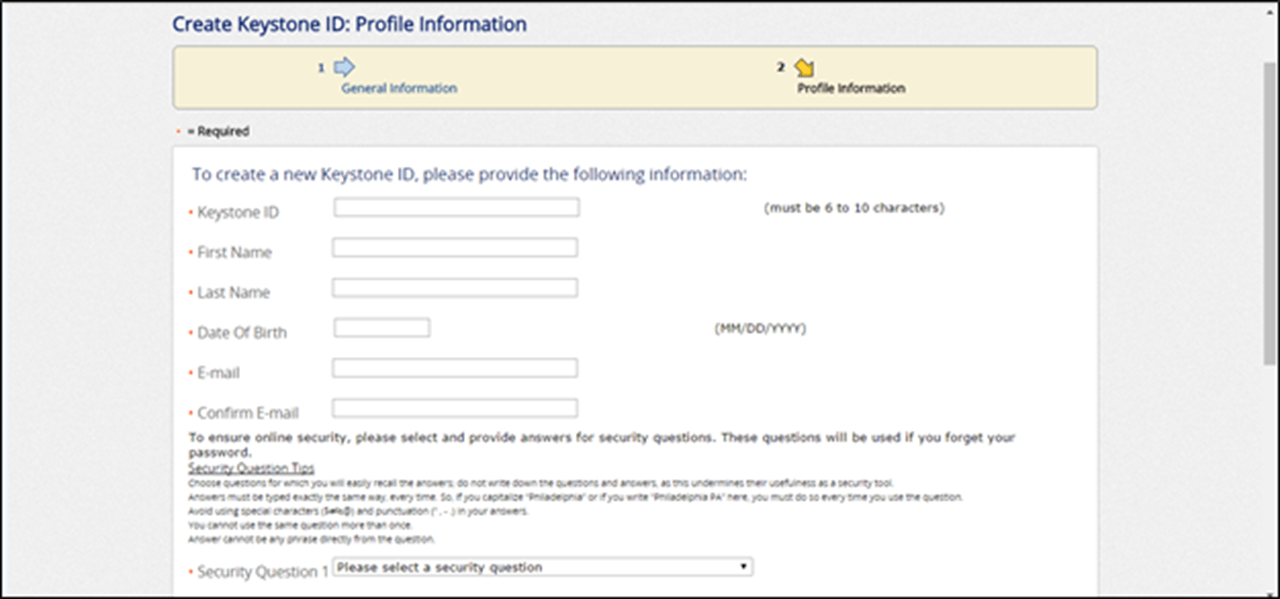
- You will be emailed a temporary password. Retrieve the password from your email and revisit compass.state.pa.us/cwis/public/home.
- Click on “Individual Log In.”
- Click on “Access my Clearances.”
- Scroll down and click “Continue.”
- Enter your Keystone ID and temporary password.
- Verify your account and select your device for authorization purposes.
- Change your password and click “Submit.”
- You will now have to log in again with your new password.
- Scroll down, select “I have read, fully understand and agree to the My Child Welfare Account Terms and Conditions” and hit “Next.”
- Scroll down and click “Continue.”
- Click “Create Clearance Application.”
- Scroll down and click “Begin.”
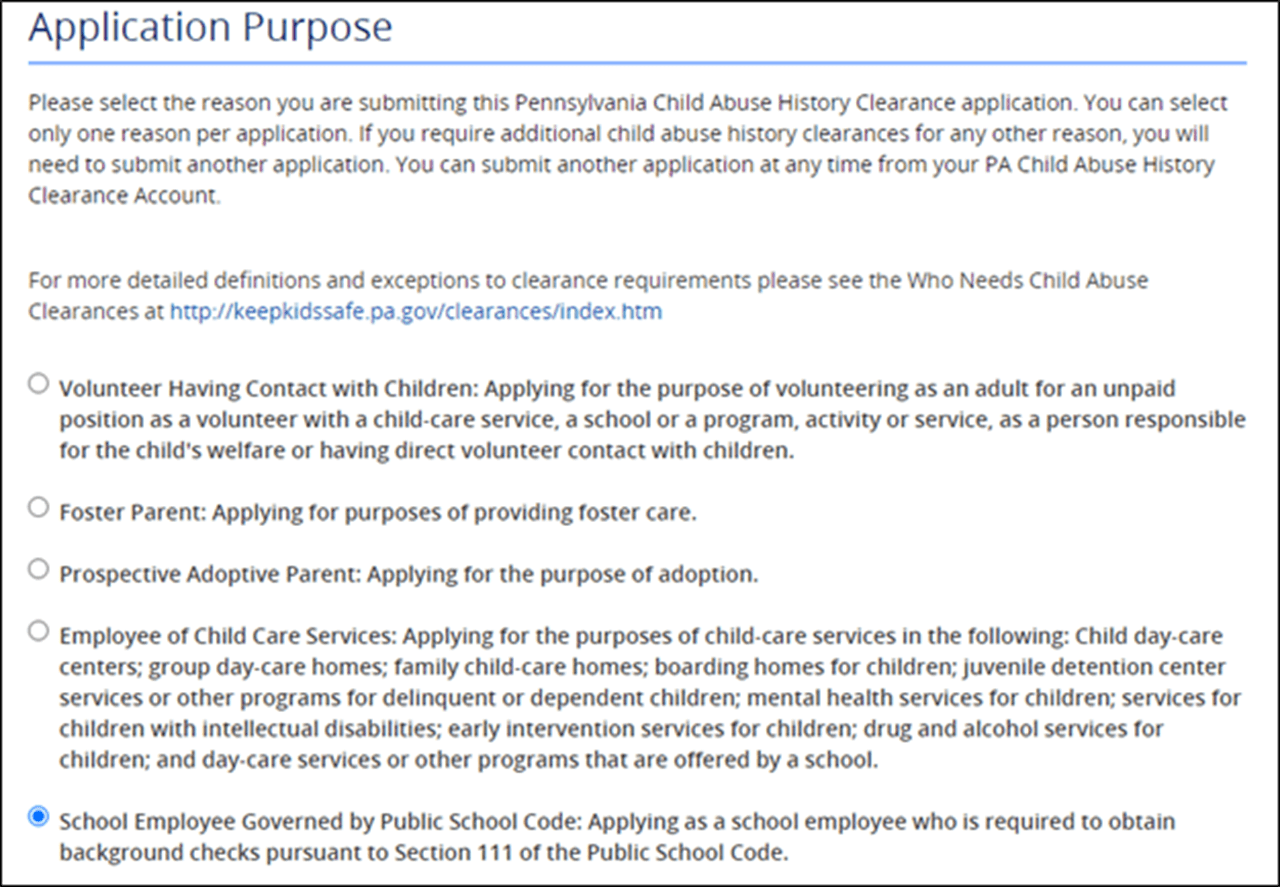
- For Application Purpose, select the fifth option for “School Employee Governed by Public School Code.” Scroll down and click “Next.”
- Complete the Applicant Information section and click “Next.”
- Complete the Current Address section and click “Next.” You do not need to have a paper copy delivered to you.
- Complete the Previous Address section and click “Next.”
- Complete the Household Members section and click “Next.”
- Review the Application Summary section and click “Next.”
- Check the box, type your full name and click “Next.”
- Answer NO to the question “Did the organization provide a code for your application?” and click “Make a Payment.” Complete information to make a payment by credit card and click "Pay With Your Credit Card."
- Your screen should look like the example below:
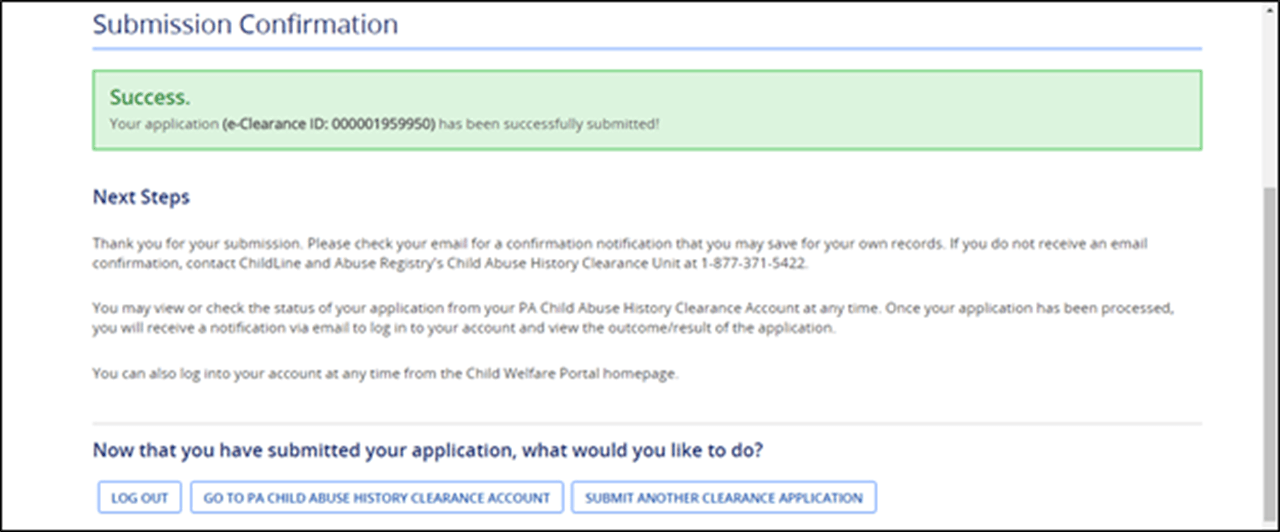
- At this point, you will wait for your results. They can take anywhere from one minute to several days. Once you receive an email from noreply@pa.gov that your results are available, you will need to go back to compass.state.pa.us/cwis/public/home.
- Click on “Individual Log In,” then “Access my Clearances,” then “Continue” and enter your Keystone ID and password.
- Click on “To view the result, click here.”
- This will download a PDF of your results that should look like this. Note that this clearance may be used for employment or volunteering purposes.
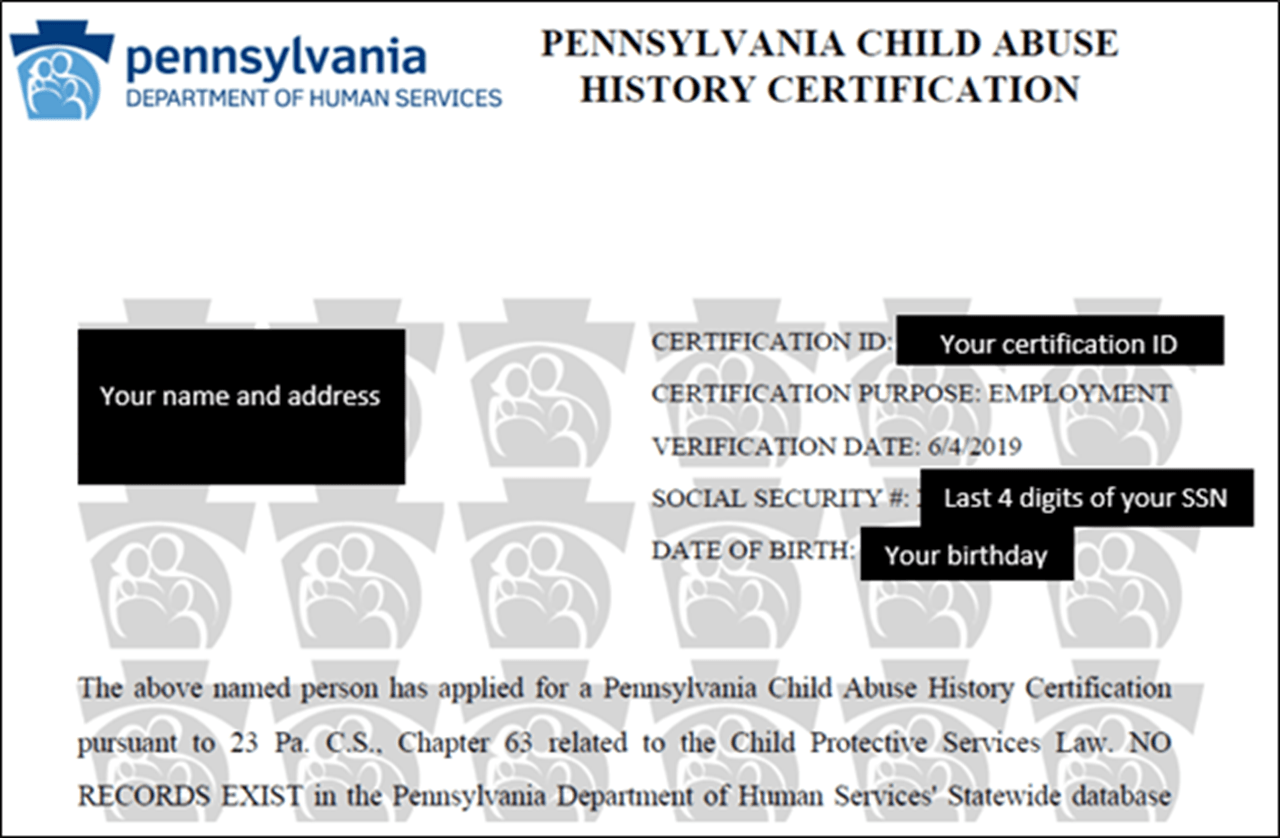
- Save your results as a PDF and send a copy to SOEclearances@drexel.edu (SOE students) or BLVSclearances@drexel.edu (Blindness & Low Vision Studies students). Note that any clearance with a record is subject to review per Background Checks Policy-HR 52 (view in Policy Directory).