Guide to Upcoming HTTPS Change
What is happening?
Drexel will soon force HTTPS for all websites in the Sitecore CMS.
What is the difference between HTTP and HTTPS?
HTTP stands for Hyper(T)ext Transfer Protocol
When a browser visits a website page, it makes a request for an HTML resource. The web server then returns the HTML content, which the browser displays to users. Often a single HTML file isn't enough to display a complete page, so the HTML file includes references to other resources that the browser needs to request. These sub-resources can be things like images, videos, extra HTML, CSS, or JavaScript, which are each fetched using separate requests.
HTTPS stands for HTTP Secure, Hyper(t)ext Transfer Protocol Secure.
The secure portion here comes from the encryption added to the requests sent and received by the browser.
HTTPS prevents an attacker from eavesdropping on the browser's requests, tracking the websites visited, or stealing information sent or received.
What do I need to do?
Before we make your website default to using Https we want to make sure it is not going to cause major issues with how your content is displayed. So we’re going to ask you to do some testing.
You will need to review your site pages under HTTPS and confirm that they are displaying accurately and/or identify any issues.
The most common issue will be that of Mixed Content.
What is mixed content?
Mixed content occurs when initial HTML is loaded over a secure HTTPS connection, but other resources (such as images, videos, stylesheets, scripts) are loaded over an insecure HTTP connection. This is called mixed content because both HTTP and HTTPS content are being loaded to display the same page, and the initial request was secure over HTTPS. Modern browsers display warnings about this type of content to indicate to the user that this page contains insecure resources.
How can I tell a page on my site has mixed content?
Browsers will typically give an indication in their address bar to indicate when a site is secure, insecure or loading mixed content.
Browser Content Status Examples
 |
Firefox Secure HTTPS |
 |
Firefox HTTPS
Mixed Content |
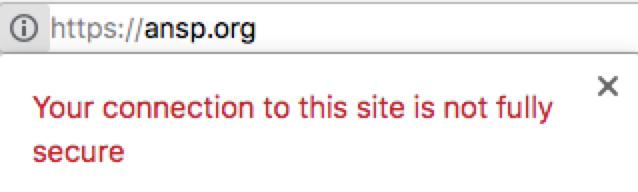 |
Chrome HTTPS
Mixed Content |
How do I view my site under HTTPS?
Manually type your site’s url into any modern browser (we recommend Chrome!) changing the usual http to https. The browse normally. Once changed it should remain https as you browse from page to page in the site.
Example: https://drexel.edu/medicine
What do I do if my browser indicates mixed/insecure content on a page?
Use this tool: https://www.whynopadlock.com
- Follow the on-page directions to enter the url of the page on your site that is showing as insecure/mixed content.
- On the results page scroll down to the section labeled ‘Mixed Content- Errors’ to get details on why that page is getting read as having insecure or mixed content.
Types of Mixed Content
Active Mixed Content – interacts with the page as a whole and has the potential to allow an attacker to change the page. Updating active mixed content is a high priority.
Passive Mixed Content – Content that doesn’t interact with the rest of the page. Any attacks would be limited to changing that specific content. Examples of passive mixed content include images, video and audio content.
Common Mixed Content Causes
- A resource linked on your page could not be found.
- A resource on your page is linked to an outside source that is not secure.
Examples: RSS feeds, embedded media like video or other iframes.
How to fix common issues
Fix link format – check your content for any absolute links (links using the full url) and make sure that they use the https prefix. Where possible use Sitecore links for any internal links.
For any external links make sure the resource is available over HTTPS.
You can check that the URL is available over HTTPS by:
- Opening a new tab in your browser
- Entering the URL in the address bar
- Changing http:// to https://
If the resource displayed is the same over HTTP and HTTPS then its safe to say that the URL is available over HTTPS. You can then change the URL from http:// to https:// for your link.
However, if you see a certificate warning, or if the content can’t be displayed over HTTPS, it means the source is not available over HTTPS.
If this this the case, you can:
- Contact the host of the resource and see if they can make it available over HTTPS
- Try to find the resource from a different host
- Exclude the resource from your website
Update media embeds – Similarly, make sure any embeds for video or other media also use the https prefix.
Fix broken links and images – Occasionally broken links to pages or images will also get flagged as mixed media. Updating these links will resolve the issue.
Email Newsletters and HTTPS change
Be aware that this change may also affect any links you may be using to content stored in Sitecore. A common example of this is linking to images stored in Sitecore for use in email newsletters.
How to fix: Simply update your image links to use https:// at the start of any link url.
Additional Resources
Mozilla's guide to mixed content
Something Else is Broken! Help!
Is something else in your site missing or broken when viewed under https?
If you find any other issue that seems unrelated to mixed content please contact Web Services: websupport@drexel.edu