Twitter Component Setup
Adding Twitter is similar to Facebook. We will need to create a component for Twitter and then add it to the Social Connection Component
-
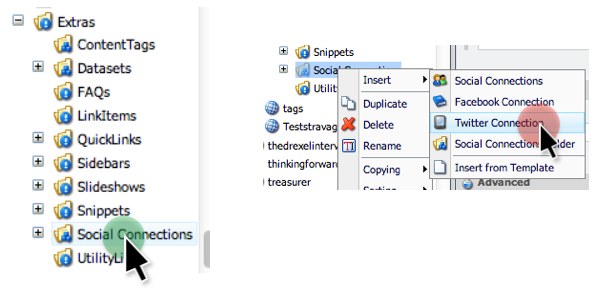
Right Click on the Social Connections folder found in your Sites “Extras” Folder
-
Click on the “Twitter Connection” option under the “Insert Menu”
-
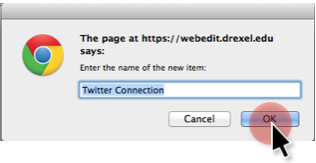
Confirm the Creation by pressing “OK”
-
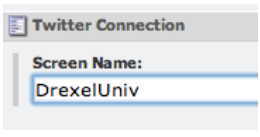
In the Twitter Connection Component type in the screen name of the Twitter account you are looking to add to your Sitecore page.
What is my Twitter Screen Name?
To find your Twitter Screen Name look at the main twitter page for your Organization. Below is Drexel Universities Twitter Page.
Your Screen Name for twitter is either the name after “twitter.com/“ in the URL bar or the name after the “@“ symbol that you use to log into twitter or be referenced to by other people. In the example below the username for Drexel would be “DrexelUniv”

-
Type in your Twitter Screen name into the “Screen name” Field in Sitecore.
-
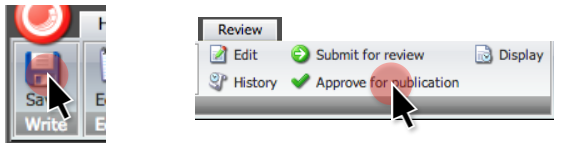
Remember to Save and Publish your Twitter Connection
Connect Twitter to Social Connections Component
Once the Twitter Connection is created we need to link our Social Connections Component to it so that it feeds in data.
-
Click on the “Social Connections” Component in the Extras Folder under “Social Connections”
-
In the main editor locate the field that says “Connections”
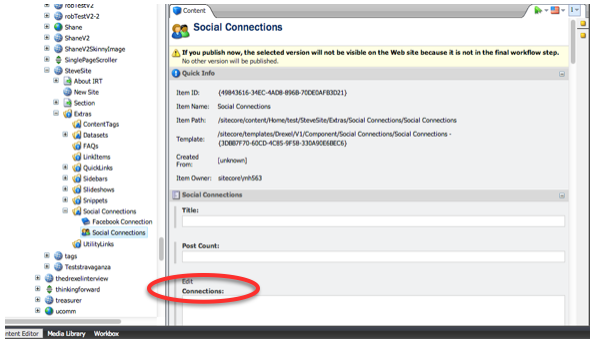
-
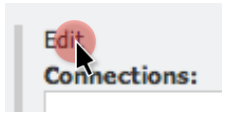
Press the “Edit” button above the word “Connections”
-
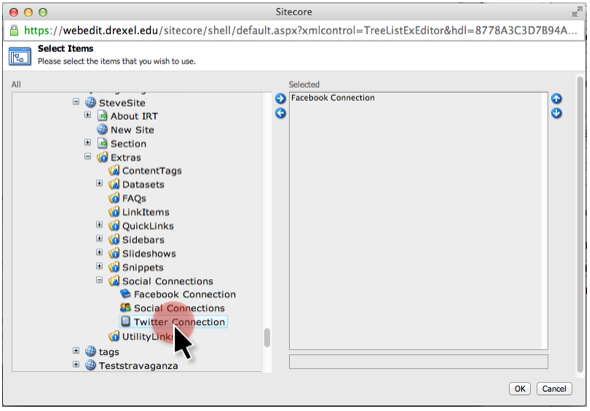
A Content tree window will appear. Find the Twitter Connection under your “Site” -> “Extras” -> “Social Connections” -> “Twitter Connection”
-
Click on the Twitter Connection to Select it.
-
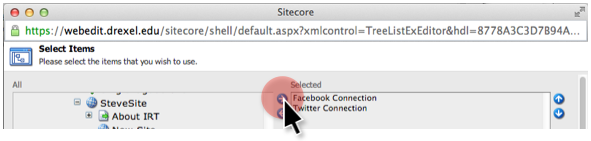
Click the Blue Arrow button that’s pointing to the right to add it to the component.
-
Click “OK” when you’re finished.

-
Save and Publish your Social Connections Component