Social Connections
Many organizations at Drexel University have social media pages, such as Facebook and Twitter, that they use to post timely content to their followers.
Sitecore allows users to take their most recent posts in Facebook and Twitter and put them on their website as a Component. The following directions explain how to set up a Social Connections Folder on your Drexel Website.
(For instructions on how to Add Components to a Page click here.)
-
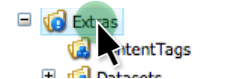
Locate the “Extras” folder of your Website in Sitecore

-
Right-Click on the Extras folder.
-
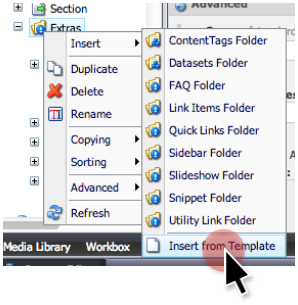
Select the “Insert” option at the top and click on “Insert from Template”
-
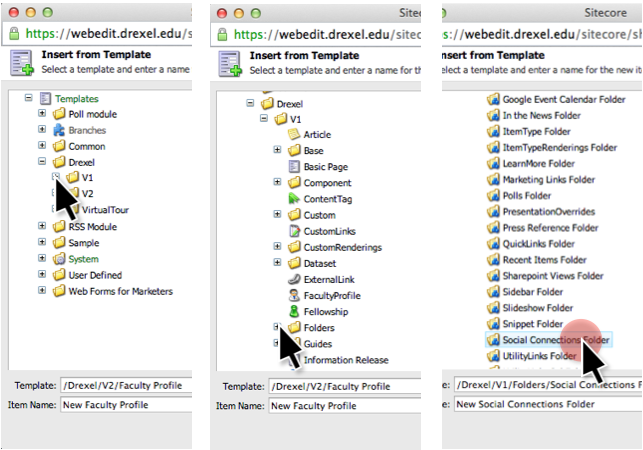
In the Template Tree Expand “Drexel” -> “V1” -> “Folders” and click on “Social Connections Folder”
-
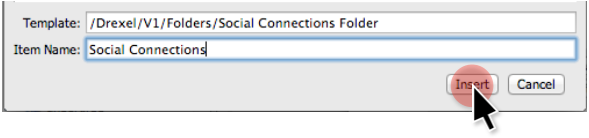
At the bottom change the Item Name to “Social Connections” or something helpful for you to reference. This is what the folder will be called in your “Extras” folder.
-
Click “Insert” when done.
-
You will now see your Social Connections folder in the Content Tree of Sitecore
-
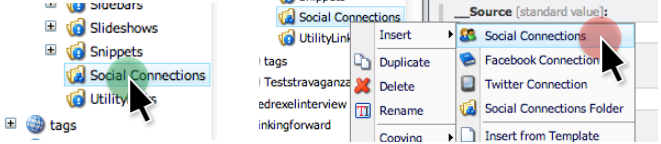
Right Click on the “Social Connections” folder we just created in Sitecore
-
Under the “Insert” option Click on the “Social Connections” selection.
-
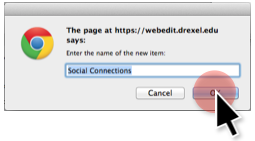
Press OK to confirm the page creation
The Social Connections option works like a Snippet. It is a list of your most recent Social Media posts that it is connected to. Now that we have the empty shell we can connect Facebook and Twitter.
Adding Facebook and Twitter Accounts to the Social Connection
Click Here for instructions on how to add a Facebook Page to your Social Connection.
Click Here for instructions on how to add a Twitter Account to your Social Connection.